
Company Brain · Beta
Every relationship.
One connected story.
Connect the people, companies, conversations, and activity already flowing through your business. Find the context behind a contact, see who is engaged, and go into your next conversation prepared.

Real product interface · Fictional demo data · Click to enlarge
Connected profiles
Know the person. Understand the history.
Search by name, company, email, or phone. Open a relationship brief or a full profile to see contact details, company context, and the records behind the relationship.
| Engagement | Prioritize human replies, inbound messages, agent conversations, and bot-filtered sequence clicks and bookings. |
|---|---|
| All activity | Inspect the detailed sequence timeline, including opens, clicks, scheduling events, completed calls, and status changes. |
| Data sources | Follow linked source records to understand where your team knows someone from. |

Real product interface · Fictional demo data · Click to enlarge

Real product interface · Fictional demo data · Click to enlarge
Company networks
See the account. Connect the people.
Open a company from the directory or a person’s profile to explore the people and sources connected to that business.
| Before a meeting | Review the latest interaction and the other people involved at the account. |
|---|---|
| During a handoff | Help the next teammate follow the source evidence and conversation history. |
| When following up | Start with recent human engagement, then inspect the actual interaction before taking action. |
Identity review
Better context starts with better connections.
When identifiers are ambiguous, Company Brain makes the evidence visible so you can review how records were connected.
| Needs review | Find uncertain identity matches from the directory. |
|---|---|
| Inspect the evidence | Review matching identifiers and the records linked through them. |
| Correct a match | Disable an incorrect shared matching key and confirm the review. New ambiguity can be flagged again. |

Real product interface · Fictional demo data · Click to enlarge
Connected sources
Your business context. In one place.
Native activity
- Smart Lists, sequences, campaigns, agent conversations, and inbox activity contribute context.
- Internal sources are always on.
- Source records stay inspectable from each profile.
CRM + meetings
- Select one connected CRM: HubSpot, Salesforce, or GoHighLevel.
- Enable Google Calendar or Zoom activity sync.
- Meeting matching depends on identifiable external attendee data.
Custom workflows
- Use the People API to find resolved people, retrieve profiles, and explore company networks.
- Create and manage custom text activities for milestones and handoffs.
- A source and external ID make repeated activity submissions idempotent.
Get started: find it, connect it, explore it.
1. Open Company Brain in the right workspace.
Sign in to Parallel AI and select the company you want to work in. In the sidebar, expand Find & Enrich and select Company Brain, currently marked Beta.
The setup guide introduces the identity graph and your sources. You can reopen it from the question-mark icon beside the Company Brain action row. Choose Explore to enter the directory.
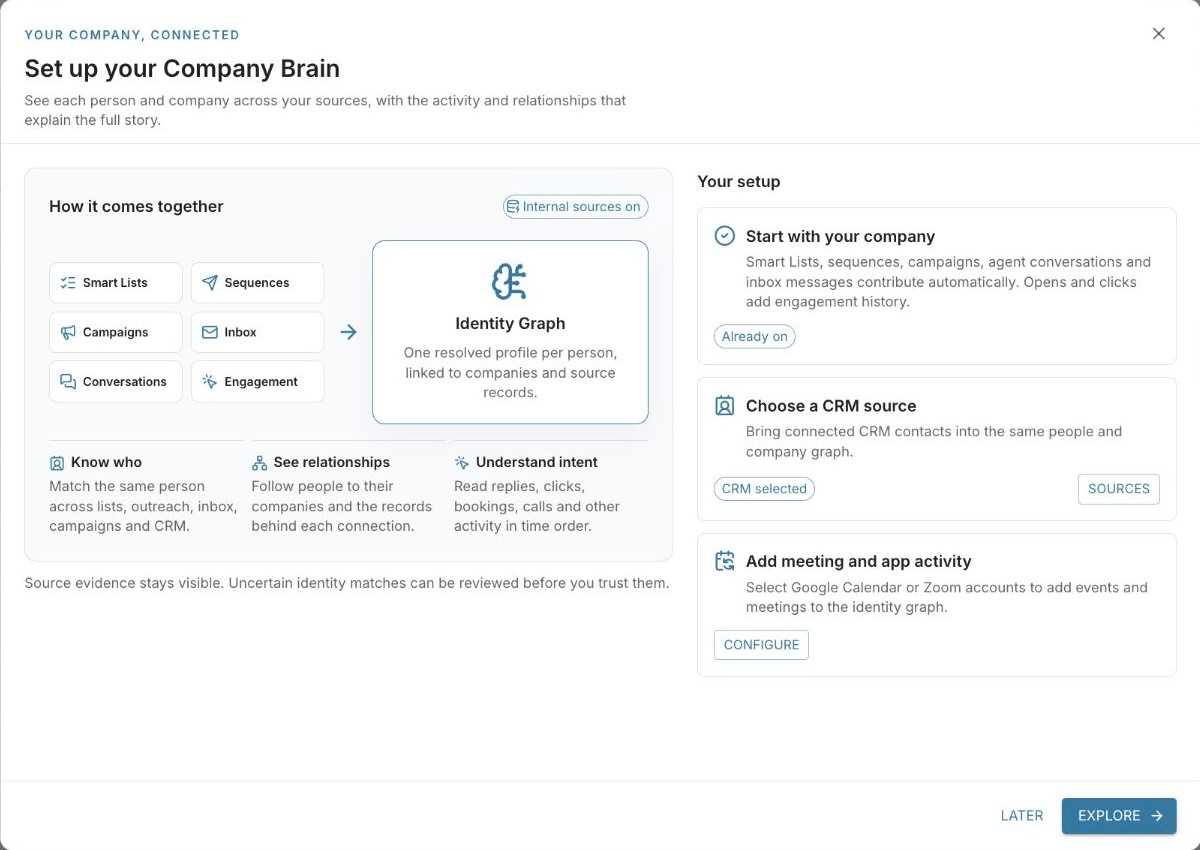
2. Check your sources and select a CRM.
Open Settings → Sources. Internal activity is always on. If you want CRM data, choose the relevant connection under CRM connections; your selection saves immediately. You can select one CRM connection at a time.
If none appears, go to your company’s Settings → Integrations, connect a supported CRM, and return to Company Brain. Back in Company Brain → Settings, use Sync now to queue a people sync. Allow processing time before expecting imported records to appear.


3. Enable Calendar or Zoom activity.
Open Settings → Activity sync → Configure. In Connected apps, select a Google Calendar or Zoom account. Use Connect if you need to add one, then Enable to turn on its sync.
Once enabled, the card shows Sync, Pause, and the last sync time. Use these controls to refresh or pause the connection. Matching depends on the attendee information the app supplies; not every meeting will identify a client.
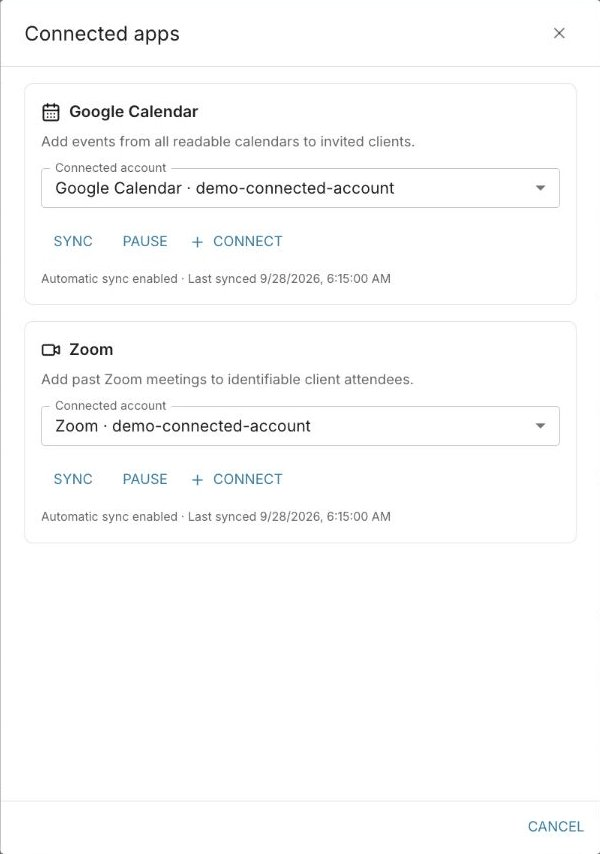
4. Follow one relationship from start to finish.
- Search for a person or company in the directory.
- Select a row to inspect its relationship brief, or click the person’s name for the full profile.
- Read Engagement for recent human signals and All activity for the detailed sequence history.
- Open Data sources to understand how the records were connected.
- Click the company name to explore its network and the other people involved.
A useful first exercise: Pick an account you are actively speaking with. Find the latest reply, identify the other people at that company, and review the sources behind the relationship. You now have a concrete starting point for your next conversation.
A few things to know.
Do I need to connect a CRM first?
No. Internal Parallel AI sources already contribute. Add a supported CRM when you want to bring its people and company data into the picture.
Do email opens count as engagement?
No. The directory prioritizes human engagement. Sends and opens do not rank as engagement; detailed sequence tracking, including opens, appears in All activity.
Will every meeting appear in All activity?
No. Synced meeting records and custom activities are separate from the sequence tracking stream in All activity. Meeting matching also depends on the attendee information available from your connected account.
Where can I read the launch announcement?
Read Introducing Company Brain for the launch story and more examples.